

You might have noticed that connecting your brand-new iPhone to Windows does nothing except show you how much free space remains on the device. You need specialized software to meaningfully interact with iPhone on Windows. That software must be none other than iTunes, right? Wrong! You can use other iPhone to Windows file transfer apps with much better results! If you want to transfer photos from PC to iPhone without iTunes or any other data from iPhone to Windows, read on to find out how!
Part 1: Why Can’t I Transfer Data From iPhone To Windows Directly?
You do not need a dedicated iPhone to Windows file transfer app if you only want to transfer photos from iPhone to PC. Apple says you can use the Windows Photos app to transfer photos from iPhone to PC. But, what about when it comes to other data such as music, contacts, and anything else? This is where we come to help. We tell you how to transfer data from iPhone to Windows the official way and some other ways. We will also tell you about a special way we think you’ll love.
Part 2: Transfer Data From iPhone To Windows Using iTunes/ Microsoft Photos
First, let’s have it the official way for those who want to stick with the official methods for any reason. Here is how to transfer data from iPhone to Windows easily with the official iPhone to Windows file transfer app called iTunes, as provided by Apple.
Step 1: Connect your iPhone to your Windows computer with a data cable. You may be asked to trust the computer and key in your passcode. Do that.
Step 2: In iTunes, click the Device icon.
Step 3: Click File Sharing in the sidebar.
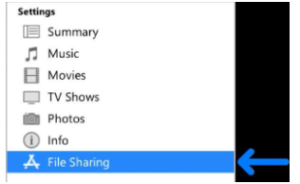
Step 4: Select the app you want to transfer data from.
Step 5: Select the file you want to transfer, select Save To, and select where to save the file.
Step 6: Click Save To to transfer the file to your chosen location.
To Transfer Photos From iPhone To Windows
Step 1: Connect your iPhone to your Windows computer with a data cable. You may be asked to trust the computer and key in your passcode. Do that.
Step 2: Open the Photos app in Windows, click the Import button, and select From A Connected Device.
Step 3: Choose the items you want to transfer and import.
NOTE
For this method to work, your photos and videos must be downloaded to the iPhone in full resolution. If you are using iCloud Photos, this method will not work.
Part 3: Transfer Data From iPhone To Windows Using MobileTrans
You can successfully transfer photos and other data from iPhone to PC, just not very quickly. What can be done to make things easier for all of us users who just want a no-nonsense iPhone to Windows file transfer app that works? Wondershare has developed an app just for that!
Wondershare MobileTrans is your respite from all the confusing methods out there to transfer files from iPhone to PC. MobileTrans is designed to be simple to use and works natively on both macOS and Windows, so you can use the app to transfer data between your phone and computer in just a few clicks using an easy-to-understand interface that speaks a language you understand. What’s more, it works for both Android and iOS devices!
MobileTrans is all you will ever need for any file transfer requirement between devices.
Step 1: Launch MobileTrans, select Phone Transfer from the tabs, and click Export to Computer.
Step 2: Select the data you want to export to the computer.
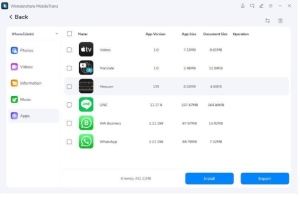
Step 3: Click Export and wait for the iPhone to Windows file transfer to complete.
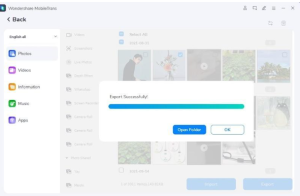
That’s all it takes with Wondershare MobileTrans! No technical language, nothing you do not understand – just simple, easy-to-use, and easy-to-understand file transfer between devices.
Part 4: Comparison Table
For a quick reckoner, we bring you a comparison table to help you see which method is the best way to transfer files from iPhone to Windows and vice-versa.
| FEATURE LIST | iTunes | MobileTrans |
| Photos Transfer | Yes, with conditions | Yes, NO conditions |
| Videos Transfer | Yes | Yes |
| File Transfer | Yes | Yes |
| Messages Transfer | No | Yes |
| App Transfer | No | Yes |
| Transfer to Apple Devices | Yes | Yes |
| Transfer from Apple Devices | Yes | Yes |
| Transfer to Android Devices | No | Yes |
| Transfer from Android Devices | No | Yes |
As you can see, anyone who wants the best iPhone-to-Windows file transfer app or needs more control over what they want to transfer between their devices has only one clear choice here – Wondershare MobileTrans.
Closing Words
iPhone to Windows transfer has always been finicky. Windows 10 and 11 do make transferring photos from iPhone to PC somewhat easy, but that comes with its own set of conditions, too – you cannot transfer photos from iPhone to PC if you are using iCloud Photos! Then, that’s a whole different ballgame. Who needs such conditions when there is an amazing app you can use right now to transfer anything, such as files and photos, including even what iTunes does not let you (Messages, anyone?) from iPhone to Windows in just a few clicks? Try Wondershare MobileTrans today – it will make your life easier!